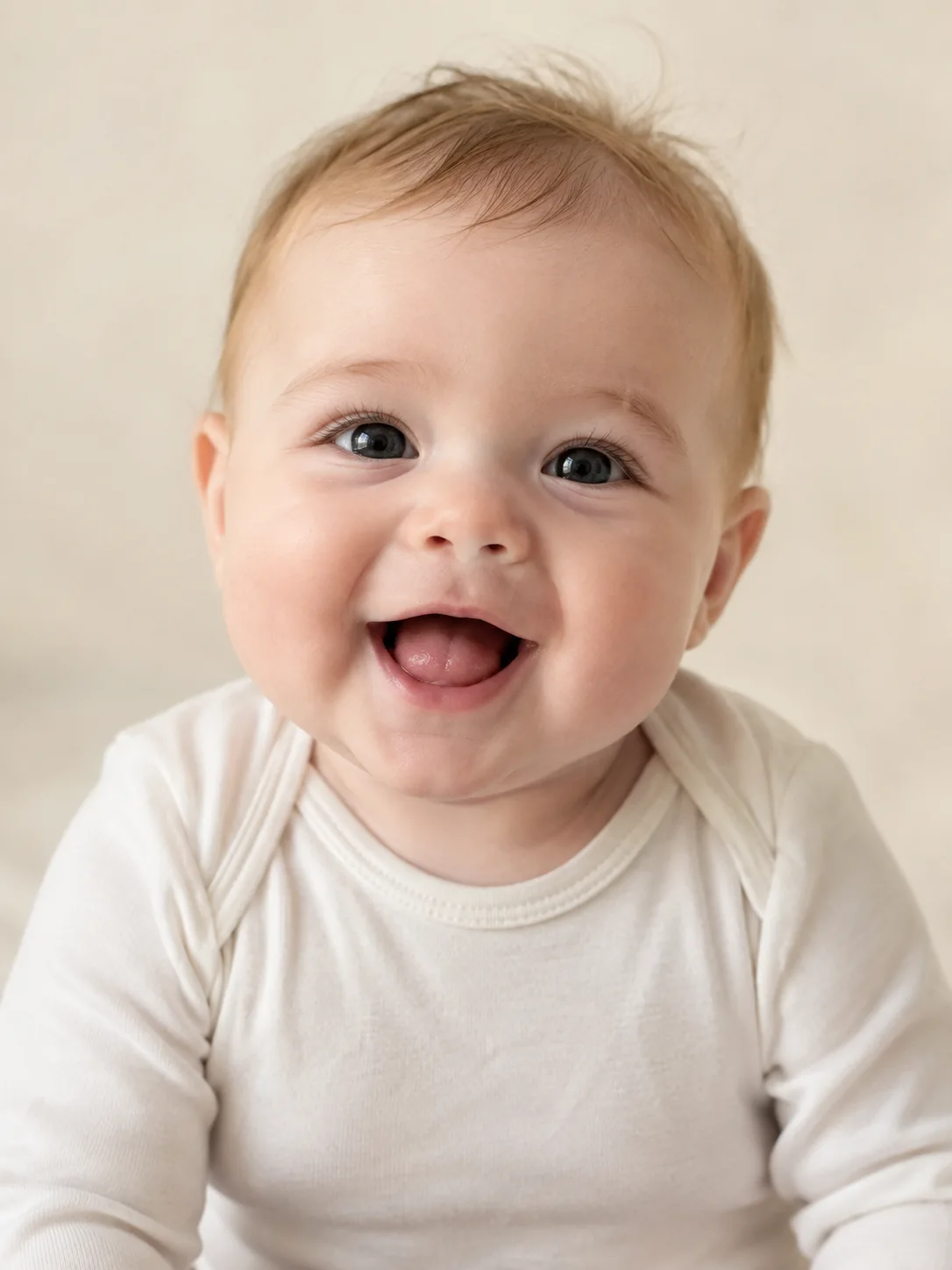
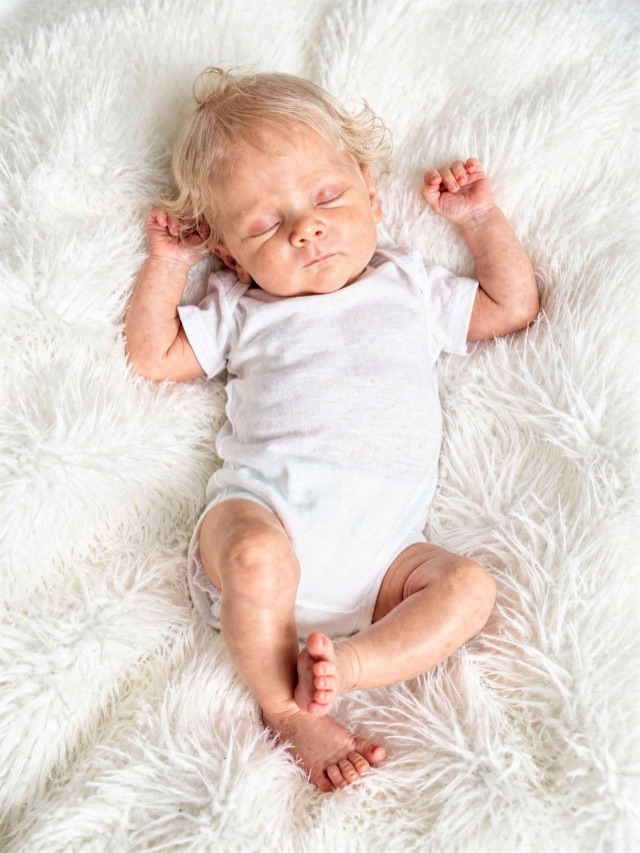
 NewbornPhotos
AI-Powered Newborn Portraits
Create a Beautiful Newborn Photoshoot from One Baby Photo
Upload an everyday photo of your baby, choose a portrait style, and create studio-style newborn portraits online — without planning a full photoshoot.
One photo · 12 styles · Free preview
- Choose a photo
- Discover a new portrait
- Keep a favorite moment
Create your AI newborn portrait
Upload a clear photo of one baby, then choose a style or describe your own.
- 1Upload
- 2Choose a style
- 3Preview & keep
Upload your baby photo
A sharp, unfiltered photo with the whole face visible works best.
From Everyday Photo to Newborn Portrait
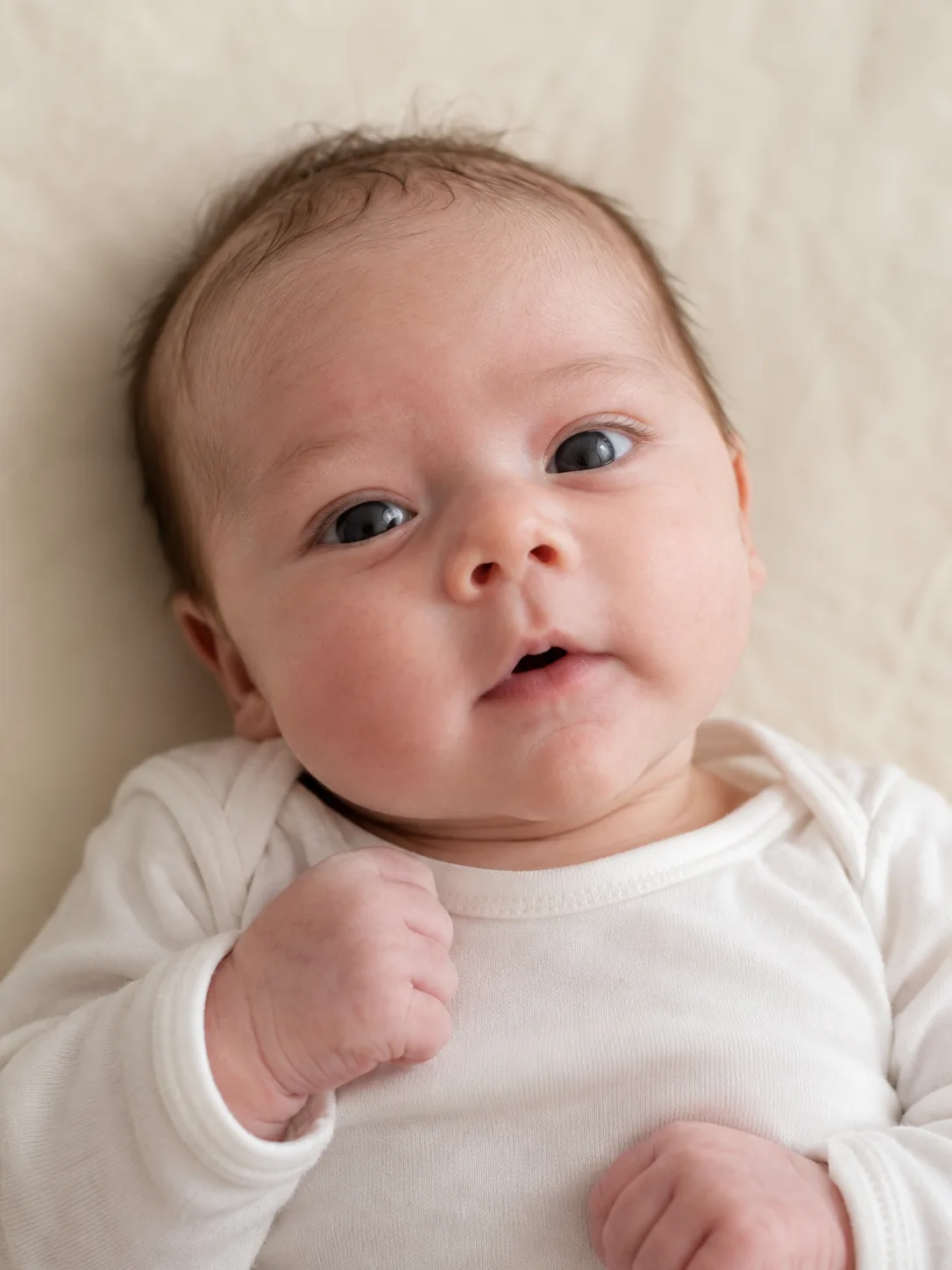
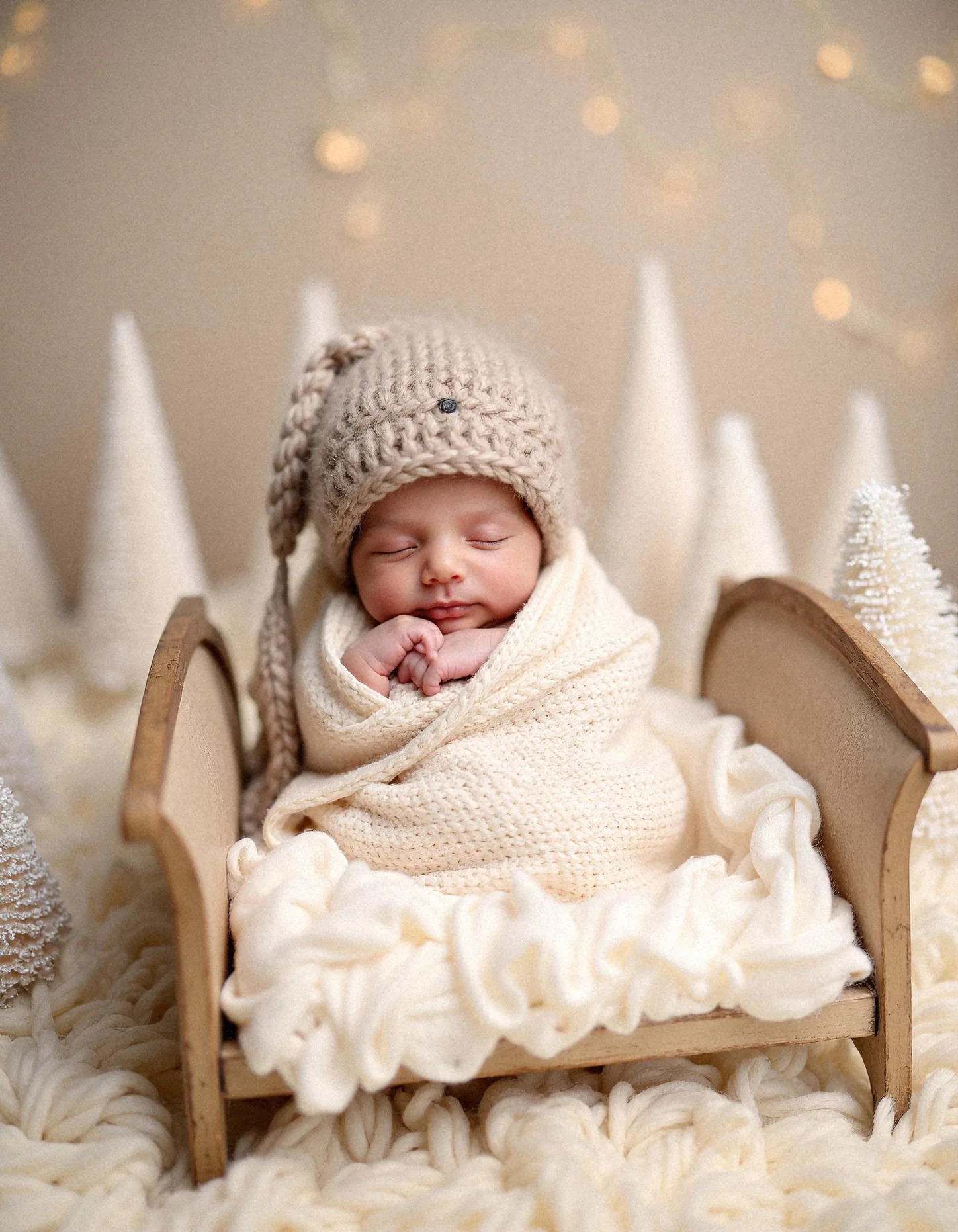
Start with a simple photo from your phone. Choose a style and turn it into a beautiful newborn portrait.
White Fleece Portrait
Everyday Photo 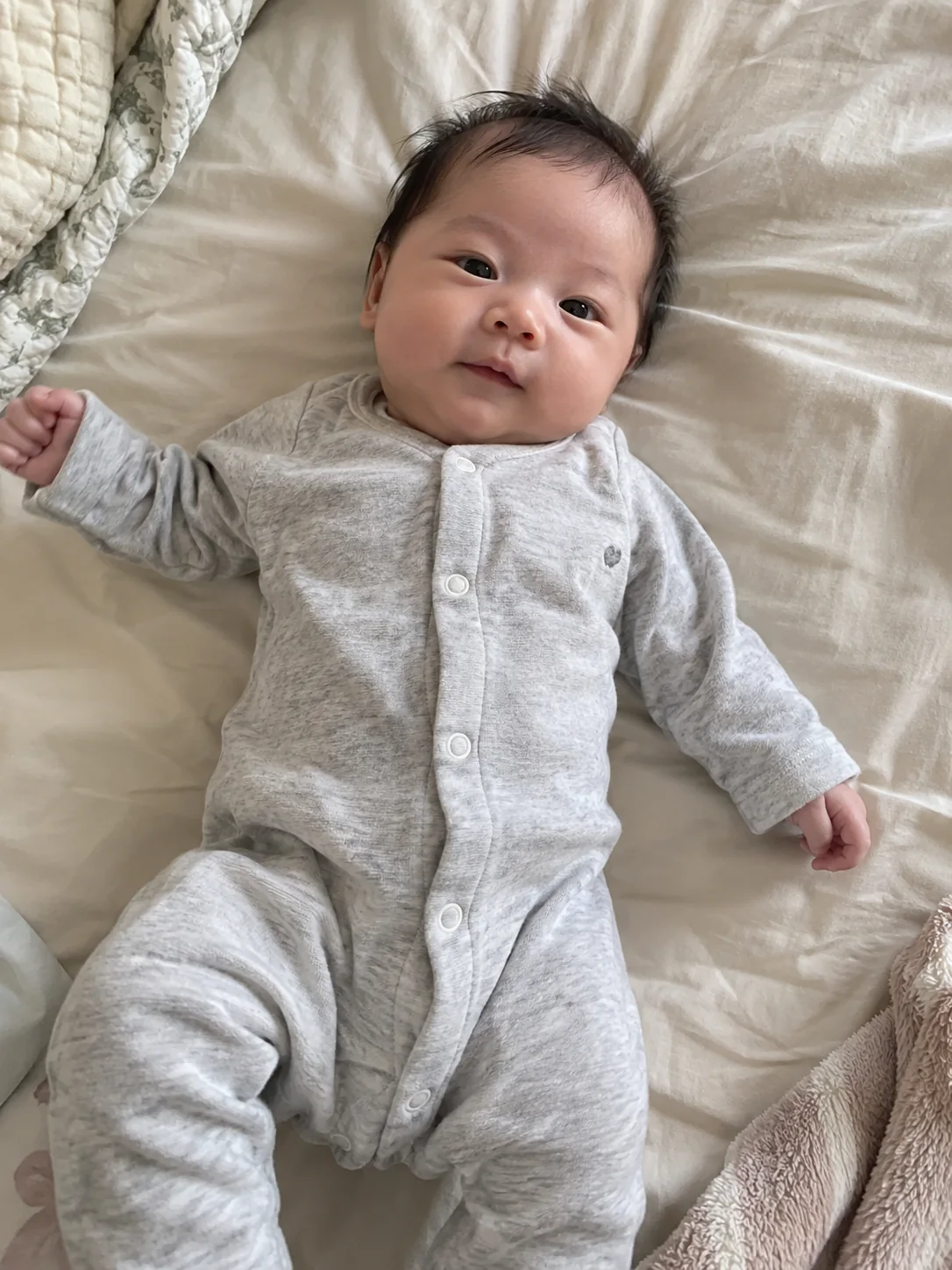
AI Newborn Portrait 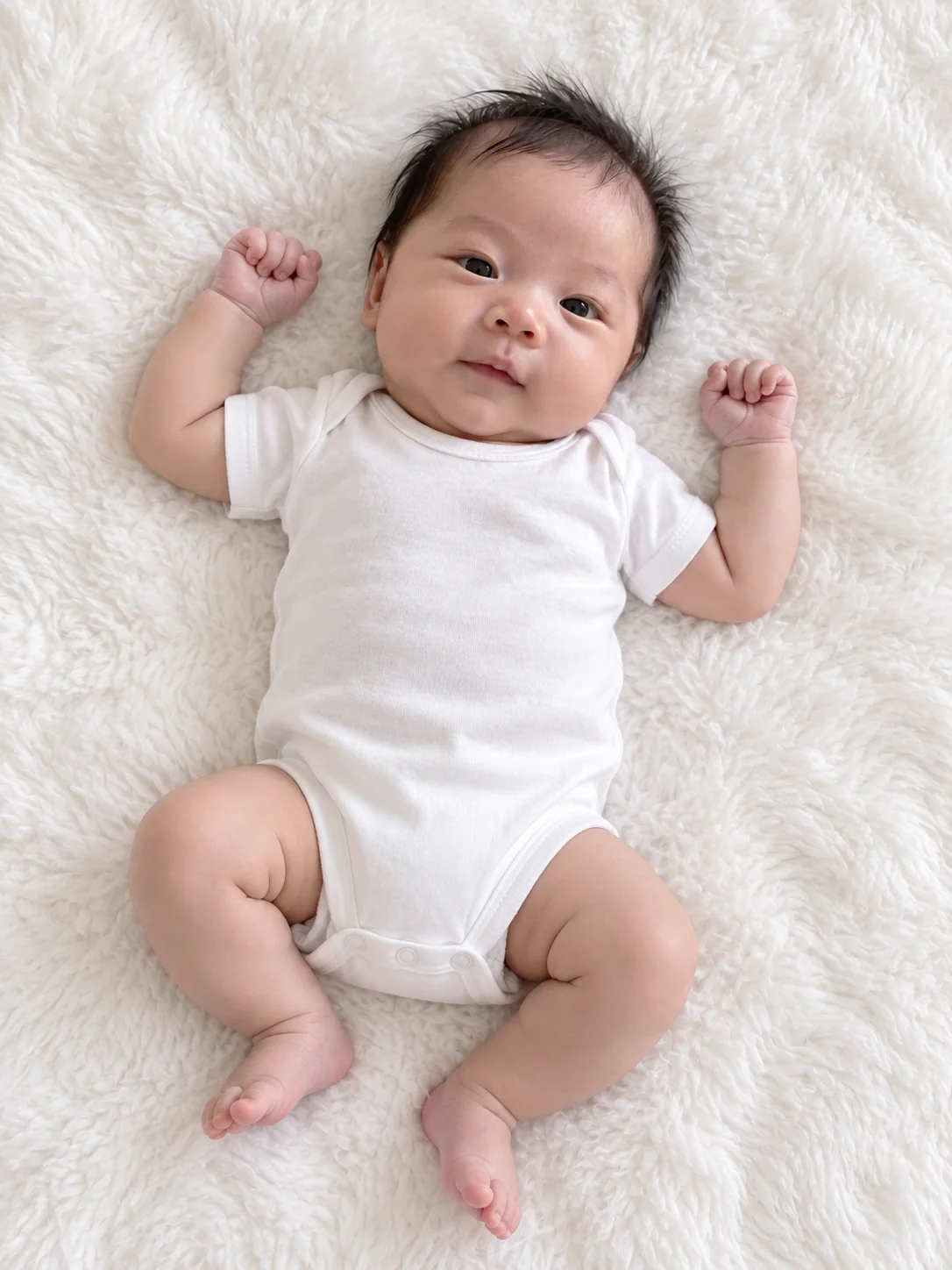
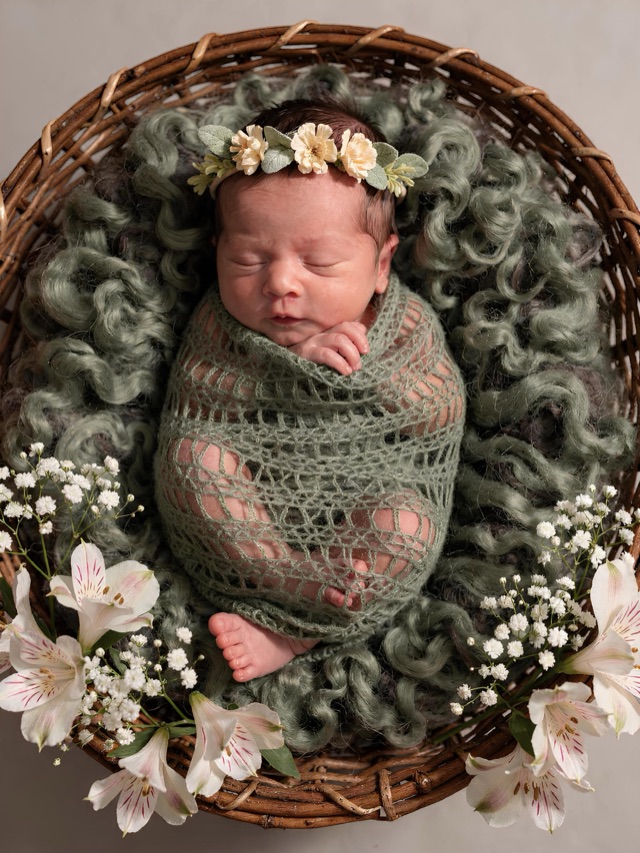
Sage Flower Basket
Everyday Photo 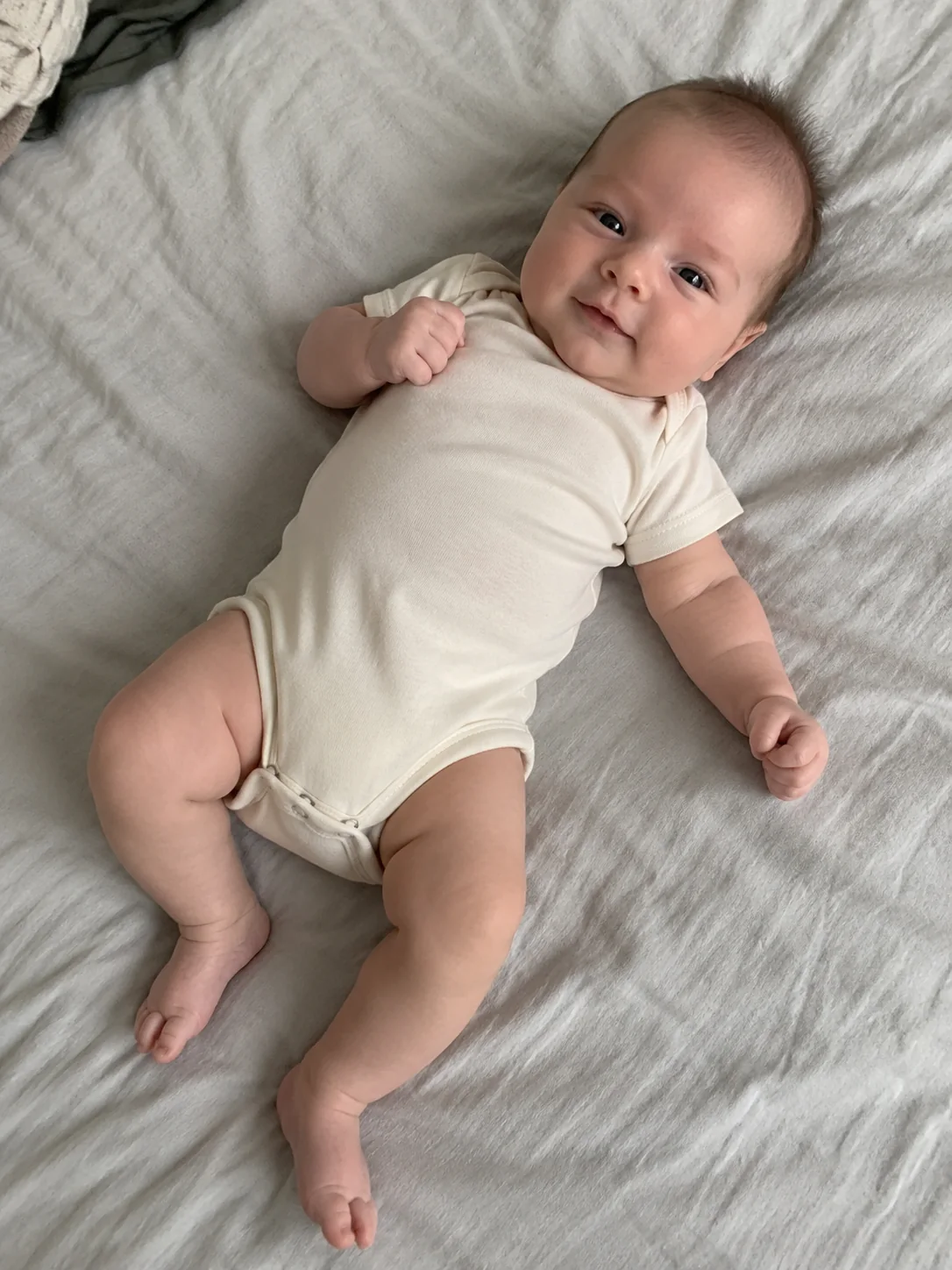
AI Newborn Portrait 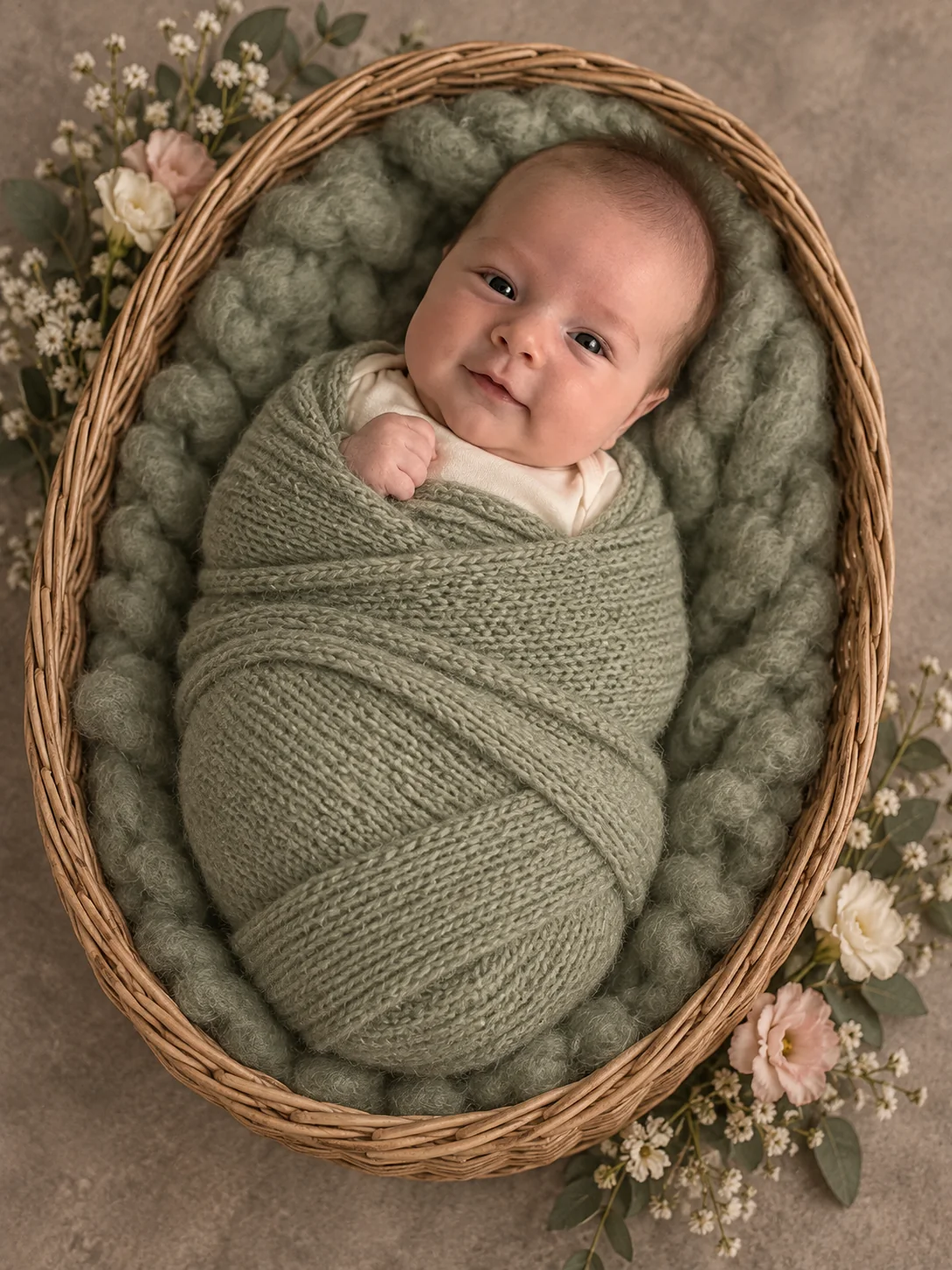
Teddy on Ivory
Everyday Photo 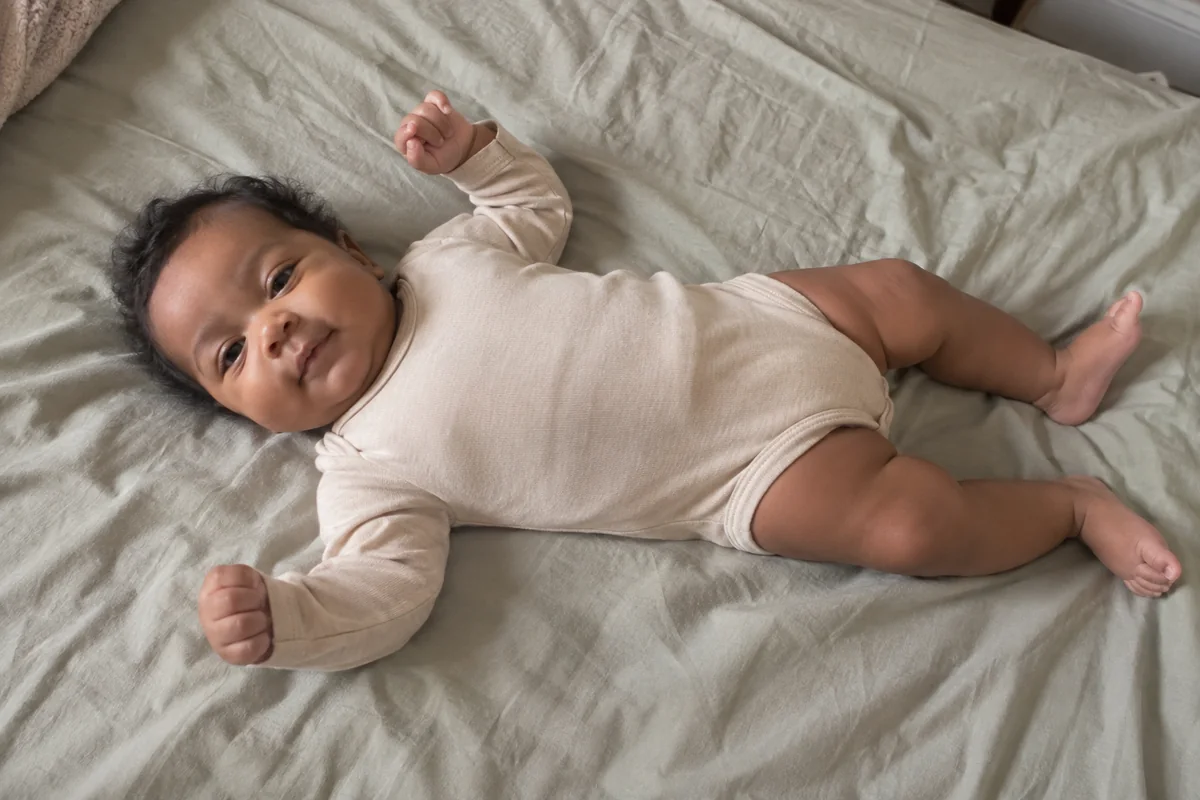
AI Newborn Portrait 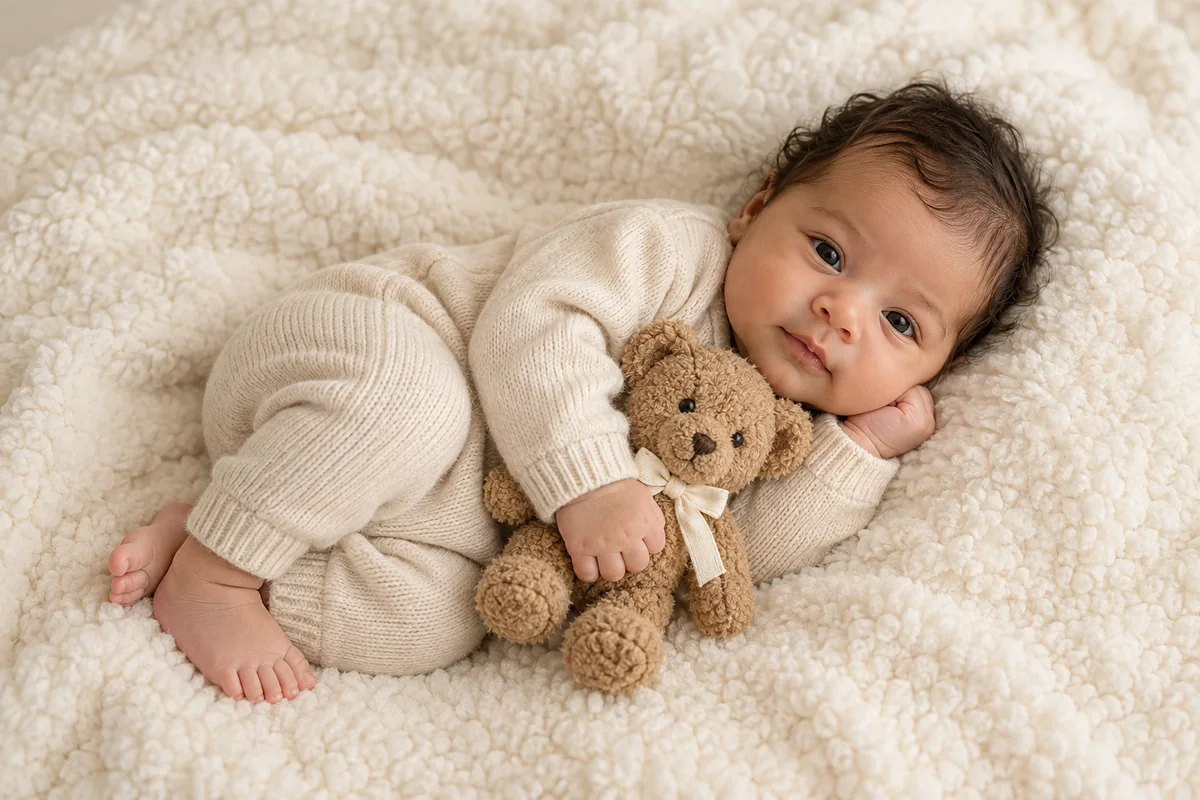
You don’t need a studio photo to get started. Upload an everyday baby photo and choose a style to create your newborn photoshoot online.
Create Your Newborn Photos for FreeFind your newborn photoshoot style
Soft wraps, flower baskets or a little moonlit magic. Choose a setting and make it the starting point for your baby’s portrait.
How your newborn photoshoot works
Create a newborn photoshoot online from an everyday baby photo. Choose the clothes, lighting and setting you love, and let AI create a studio-style newborn portrait without arranging a photo session.
It suits parents who want to explore a studio look from a photo they already love. The AI uses your baby’s photo as a likeness reference and builds a new scene around it. Keep the original, too: the generated image is a creative portrait of your baby.
See photo preparation tipsChoose one baby photo
Choose one clear photo of your baby and upload a JPG, PNG or WebP up to 10 MB. A phone photo works; you do not need a studio backdrop, matching outfit or a collection of training photos.
Find your favorite setting
Pick one of 12 presets to guide the lighting, clothing and composition. For a different idea, choose “Create your own style” and describe the backdrop, colors and mood. The same uploaded photo can be used again with another style.
Generate, then download
Generate one portrait and open the preview to check the face, hands and overall composition. Your portrait is saved privately in My portraits, where you can return to purchase and download it without a watermark. If a detail feels off, try a clearer input photo or a different setting.
Newborn portrait tips: start with a clearer photo
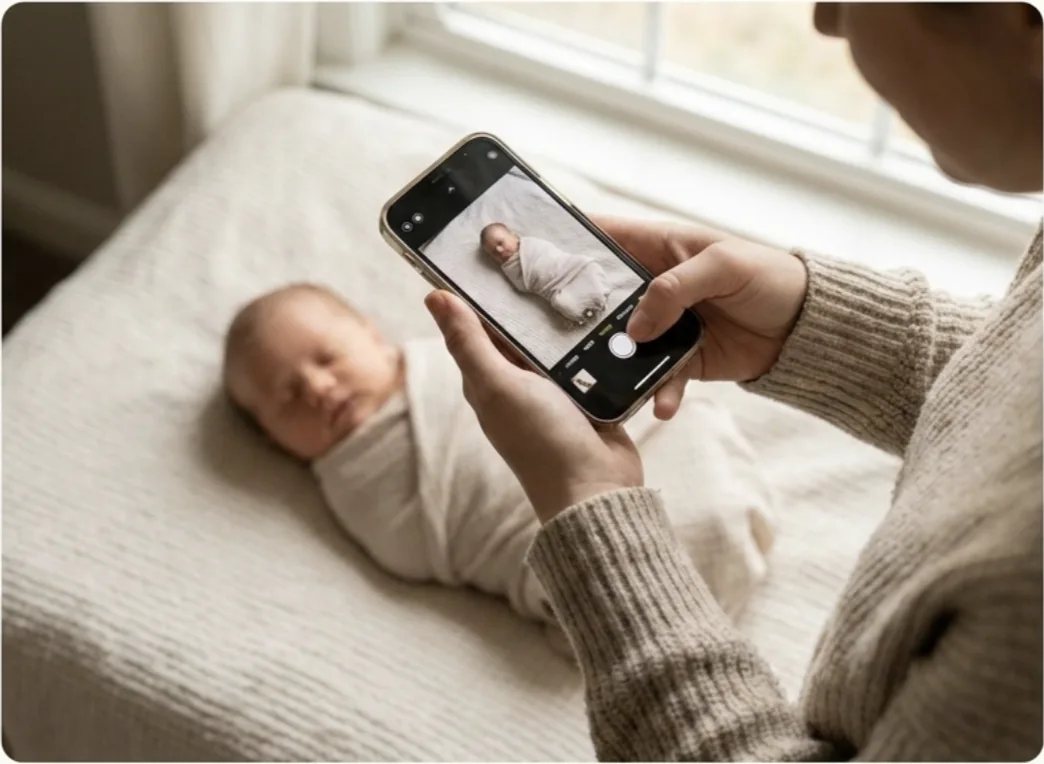
The source photo gives the AI its starting point. A few simple checks help you choose a useful image from your camera roll before generating a newborn portrait.
Look for soft, even light
Choose a photo where both sides of the face are easy to see. Strong backlighting or a deep shadow across the eyes hides details the AI needs. Brightness alone is not enough; the face should also be in focus.
Keep the whole face visible
Use a photo of one baby with the eyes, nose and mouth unobstructed. Avoid pacifiers, hands covering the face, tight crops through the head or a baby who appears very small in the frame.
Upload the original file
Use the camera file instead of a screenshot or a heavily compressed copy from a chat. Skip beauty filters and strong skin smoothing so the reference keeps the facial detail you want in the portrait.
Leave the styling to the scene
An everyday outfit and a simple background are enough for the reference. The preset supplies the wrap, basket or studio setting digitally, so you do not need to recreate the display photo to use that style.
Before generating: one baby, a visible face, an original JPG / PNG / WebP, and a file under 10 MB.
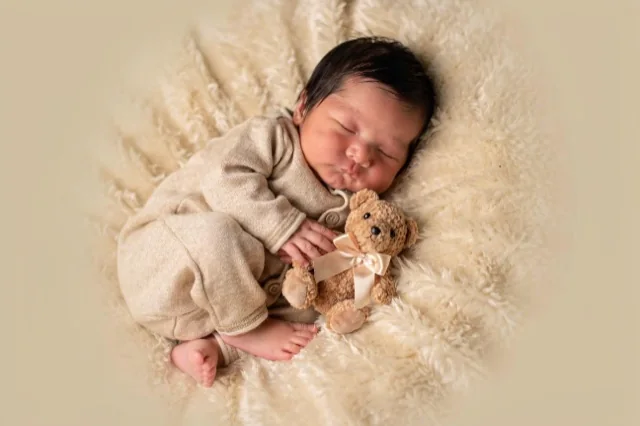
Newborn portraits for the memories you want to keep
Think about where you would like to use the image before choosing a style. A simple white portrait and a playful teddy scene can tell very different stories about the same little person.
A birth announcement
Try white fleece or an oatmeal wrap for a gentle, uncluttered image. After downloading, place the portrait in your own announcement design and add the name and details there.
A page in the baby album
A botanical basket or warm terracotta scene can sit alongside your everyday photos. Keep the originals and label AI portraits in the album so real moments and imagined settings remain easy to distinguish.
A little update for loved ones
A teddy or crescent-moon setting makes a playful digital portrait to share with family. Review the likeness first and mention that it was created with AI when sharing the image.
AI newborn photography or a studio session?
Choose the experience that fits what you want to keep. This tool helps you explore new portrait settings; a photography session captures the baby and people who are there in person.
| What matters | This AI photoshoot | A photography session |
|---|---|---|
| Starting point | Upload an existing photo and choose a preset or describe a scene in your browser. | Arrange a session with a photographer and plan the location, clothing and setup together. |
| The image | A newly generated portrait. The scene and facial details may differ from the source photo. | A photograph taken at the session, with any editing agreed with the photographer. |
| Who is included | One baby per portrait. Parents, siblings and group photos are not supported. | Discuss family portraits and sibling photos with the photographer when booking. |
Looking for newborn photo editing?
This tool generates a whole new image. It does not offer brushes for skin retouching, selective background removal or exact edits to the original photograph. If you want to preserve every original detail, use a photo editor or discuss retouching with your photographer.
Know where your baby’s photo goes
Creating a portrait sends an image outside your device. Here is what the current tool does, so you can decide which photo you are comfortable uploading.
Privacy Policy- AI processing
- The uploaded photo and selected scene are sent to Apimart for generation. The provider’s policies govern image retention. An expiring result link does not confirm that the provider has deleted the image.
- Keeping your result
- Generated portraits are saved privately in My portraits in your account. Return there to view watermarked previews, purchase a favorite, and download it without a watermark after payment.
Newborn photoshoot FAQ
Photo requirements, style choices, editing, downloads and what to expect from an AI portrait.
Privacy PolicyHow many photos do I need, and what files work?
Upload one JPG, PNG or WebP photo, up to 10 MB. Use soft, even light and keep the whole face visible. Choose a photo of one baby; group and family photos are not supported.
Will the portrait look exactly like my baby?
Your photo guides the baby’s likeness, but AI can change facial details, skin texture and proportions. Review each result. A sharper photo or another style may give a better match.
Can I customize the scene or write a prompt?
Yes. Choose one of 12 preset styles or use “Create your own style” to describe the clothing, backdrop and lighting you have in mind. This creates a new portrait; it is not a tool for editing individual parts of a photo.
Can I use these styles for a newborn boy or girl?
Yes. Choose by the colors, clothing and setting you like. The presets are not restricted by gender. White fleece and oatmeal wraps offer neutral starting points, while floral baskets, terracotta and charcoal give you other palettes to explore.
How do I edit newborn photos with this tool?
Upload a photo, choose a scene and generate a new portrait. This changes the full composition, including the setting and clothing. It does not apply precise touch-ups to your original. For small changes such as exposure or a blemish, use a photo editor.
Can I print my AI newborn portrait?
You can download an image and check it for your intended print. Inspect the actual file dimensions and ask your print service what size they support. The tool does not offer selectable print sizes or deliver physical prints; do not assume every result is suitable for a large print.
Is the newborn photoshoot free?
Watermarked previews are free within the generation limits. To view and download a selected portrait without a watermark, choose a one-time payment of US$1–99 (US$10 by default). Each purchase unlocks that image only. There is no subscription or automatic renewal.
How do I save my portrait?
Each generation creates one portrait and saves it to My portraits. Return there to preview it, collect it, and download it after payment.
What happens to uploaded photos and results?
Your photo and chosen style are sent to Apimart to create your portrait. Generated portraits are saved privately in My portraits, with watermarked previews before purchase. Provider retention follows its own policies.
Your baby. A new little portrait.
Choose one favorite photo to begin.
A little inspiration for every chapter
Find a newborn style, prepare a better home photo or build an album through the first year.